Tempo for Kack Enterprise
Things to do
- Add a new driver
- Make changes to a driver’s profile
- Block or permit drivers to log in
- Reset a driver’s password
Step 1: Add a new driver.

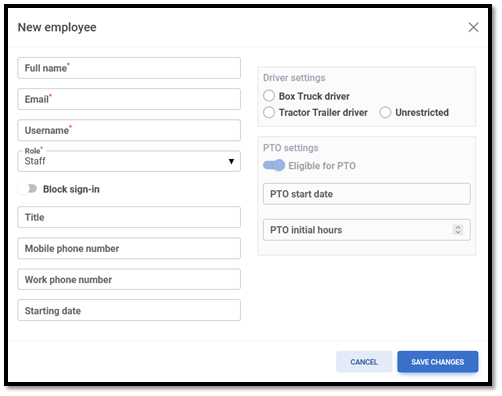
To begin, click or tap Add a new employee. A form will appear with some standard data points, as well as other data points that are specific to KACK Enterprise:
Driver settings: For new drivers, choose their primary truck type. Doing this will restrict the driver’s routes to only those that match the type of truck he/she drives. For drivers that regularly drive both types of trucks, choose Unrestricted.
PTO settings: For drivers who are eligible for PTO, enter their PTO start date and any initial hours, if the driver is on-boarding from an existing contract.
Tip: For eligible drivers, Tempo will use the Starting date if the PTO start date is left blank.
Step 2: Make changes to a driver’s profile

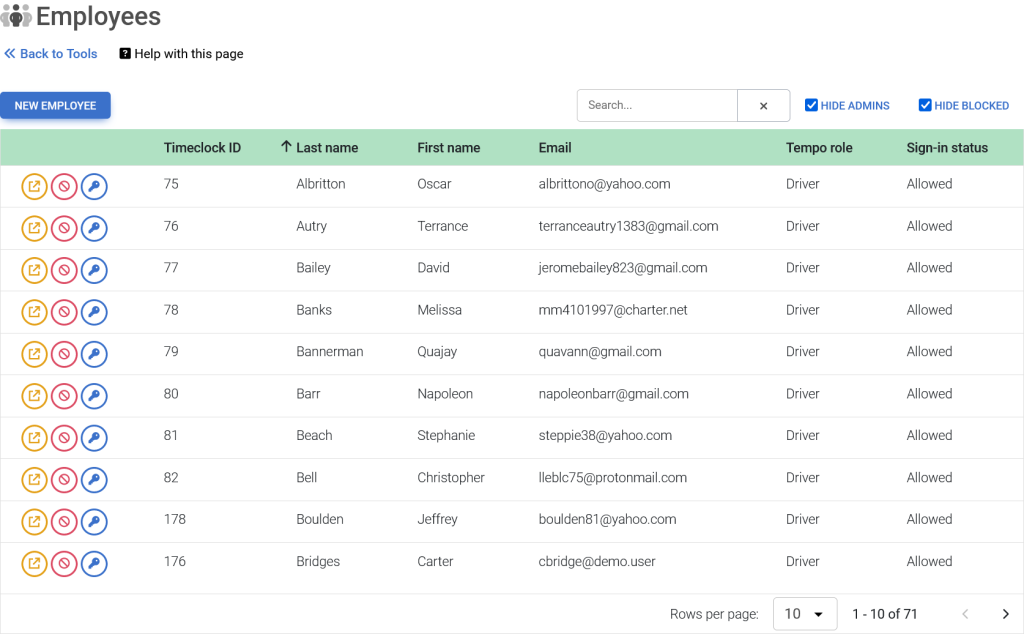
To change a driver’s profile, click or tap the yellow expand button next to the driver’s name (The first button that looks like a square with an arrow pointing to the upper-right corner). To locate a specific driver, use any of these sorting/filtering features:
- Sort alphabetically by any column
- Filter by entering in a partial keyword, such as a driver’s name or timeclock ID
- Extend the list by changing the number of results that appear on view
- Navigate pages using the buttons below the table
Step 3: Block or permit drivers to log in

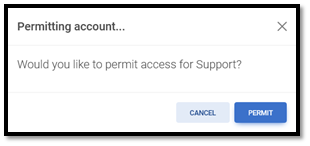
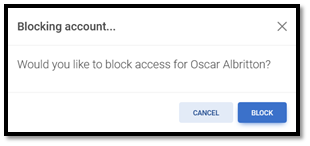
To block or permit an account, click or tap the red cancel button next to the driver’s name (the second button). Blocked accounts cannot log into Tempo. Tip: to view blocked accounts, uncheck the Hide Blocked button. If a driver is already blocked, they will instead have a green check button indicating that their access can be unblocked.