Create manual holiday entries for drivers.
Step 1: Holiday entries can be entered in bulk or in a single entry.
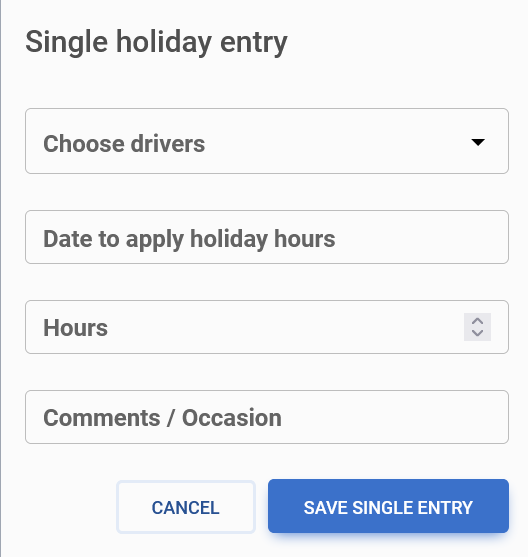
To enter single holiday entries for a driver, a form will appear on the Holiday Entries page, all sections should be filled in and saved for the holiday entry to be submitted.
- Choose a driver
- Select the date to apply holiday hours
- Choose the hours
- Make any comments
- Save the single holiday entry
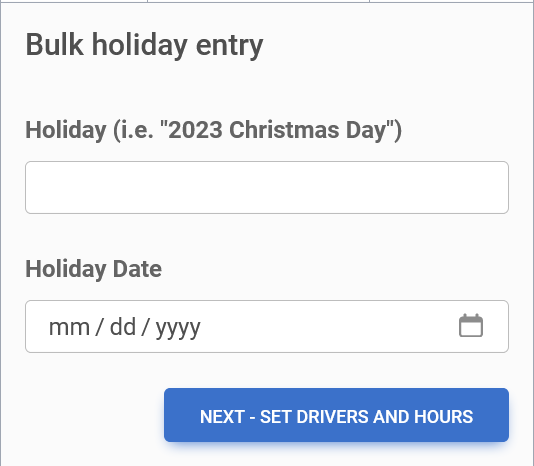
Step 2: To enter bulk Holiday entries, click or select the bulk entry option.
- Holiday name
- Holiday date
Select the blue next button to continue the bulk entry.
Step 3: The screen to set the drivers hours and the date of the Holiday if it is different than the default date.

Step 4: Click to select the blue save changes button or close the window.

Note: When navigating through the Holiday entry list the up and down arrow will allow the Holiday list to be in ascending or descending order.
