Review extra trip tickets submitted by drivers, and convert them into timesheet hours
Things to Do:
- Open in new tab
- Filter date ranges
- Download extra trip ticket
- Convert to hours
- Delete extra trip ticket attachment
Open in new tab:

To view extra trip ticket attachment photo, click or select the light blue icon this will open a new window showing thew extra trip ticket attached photo. From here the photo can be saved to files to reviews for verification.
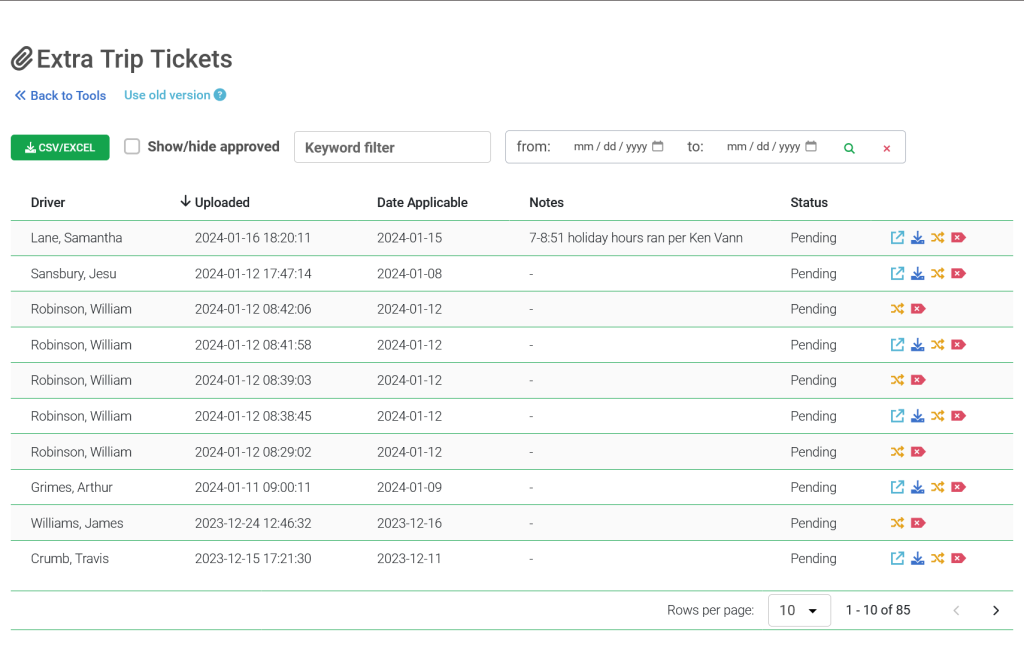
Set Date Range: Date Ranges can be set to filter pending extra trip tickets. Once date ranges are set click or select the green magnifier to filter the search.

Download to export extra trip ticket :

To download the extra trip tickets, click or select the blue download the CSV/Excel file or click the green button at the top of the screen to download all submitted the extra trip tickets.

Covert time to hours:

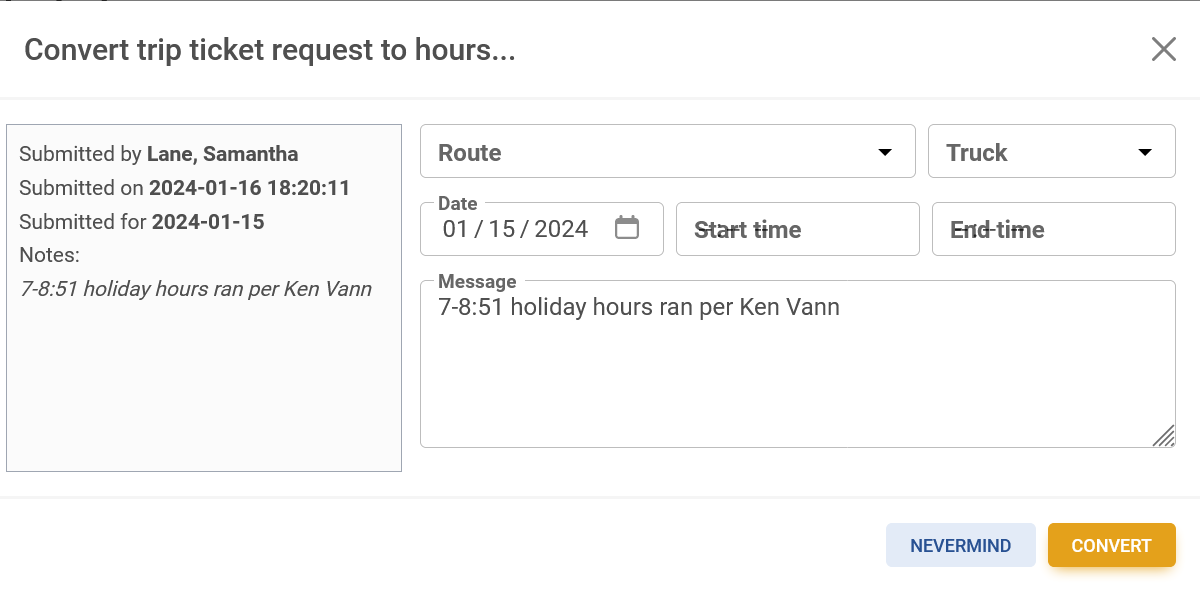
To convert trip tickets to the driver’s timesheet simply click or select to convert submitted extra trip tickets to timesheets hours, once selected popup window will appear. Fill out the form and select or click the yellow convert button to convert the extra trip ticket.
Delete extra trip ticket attachment:

To delete a submitted extra trip ticket attachment, click or select the red x icon to delete the attachment linked to the extra trip ticket.

Add Extra trip ticket for a driver:
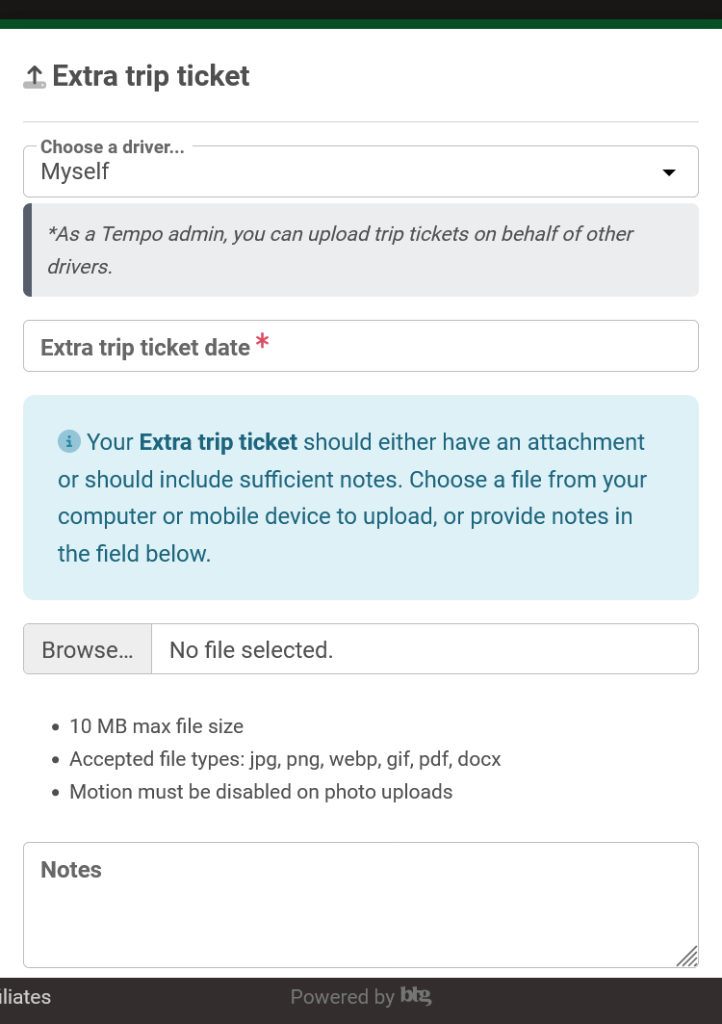
Administrators have the ability to add extra trip tickets on the driver’s behalf. Navigate to the dashboard and click or select the extra trip ticket button.

Fill out required fields:
A pop-up window will appear and allow an extra trip ticket to be uploaded for myself or another driver. Fill out the required fields:
- Choose a driver
- Extra trip ticket date
- Upload image attachment of the extra trip ticket
- Notes(if any)
Once all the fields have been filled out click or select the green save button.